Contributors

Wednesday, July 25, 2012

InDesign vs Word

Layers
One of InDesign features is it's layers.  On the right side panel you will see the layers (the red box).


The oparts of the document (e.g. picture, text, everything!) can be put in layers.  These layers can then be arranged from on top of the document to the bottom.  It is also useful to help select the part of the document you want when you have a complicated page.  Word does not have this feature.

User Friendly
Word is a more self explanatory and user friendly than InDesign.  At the top of the program in the tool bar, are lots of basic options.  These are alot easier to apply to the document than in InDesign. 


Copyright

Copyright is a concept which alows the person who created the work to have exclusive rights to it.  Copyright laws allow the holder to have the right to control who is alowed to use their work and what for.  The holder can sell and licence this right.  If you work for someone, then they have bought the right to your work in advance.  You do not need to register or give any notice, as soon as your work is in tangible form it will be copyrighted.  The copyright will last for 50 years after the work is made. 

A brief introduction to copyright can be found at: http://www.templetons.com/brad/copyright.html accessed 7/2/12
Creative Commons develops, supports, and stewards legal and technical infrastructure that maximizes digital creativity, sharing, and innovation.
Creative Commons have different licences which people can use to protect their work. They are:

  • AttributionAttribution - Anyone can use your work but they must give you credit for it.

  • Noncommercial iconNoncommercial - Anyone can use your work but not for commercial purposes.

  • No Derivative Works iconNo Derivative Works - Anyone can use your work but only verbatim copies, not copies they have altered.

  • Share Alike iconShare Alike - Others can distribute derivative works only under the same licence which licences your work.

More information about Creative Commons and their licences can be found at their website at:  http://creativecommons.org/ accessed 8/2/12
I hope this blog has been helpful and taught you a little about copyright.

Visual Basic

When working with numbers in Visual Basic, you can use the 'IsNumeric' function to check if something is numeric.  Such as 'IsNumeric(txtIncome.Text)', this is checking to see if the text in the txtIncome textbox is only numeric.  It can be used in an 'If' statement to carry on with your intended program if it is only numbers or stop the program and warn the user if they have entered wrong text.

The 'Val' function is used before a variable or text box to turn the information in the text box into and integer.  Such as 'Val(txtIncome.Text)'.  This is turning the information in txtIncome into numbers.


While using Visual basic, it is sometime useful to edit out some lines of code to find problems or mistakes.  You can do this by putting a ' before the line.  E.g. 'iIncome = Val(txtIncome.Text).  This line will then become green and will not be used in the code.  You can also use this to write yourself notes about what is happening in your code, for example, 'Declaring Variables.

Monday, May 7, 2012

Colours


It is good to reuse colour throughout your document.  You can do this by making colour from a picture you are using a 'swatch' so you can use it easily.  To do this you can use to dropper to select the colour you want then saveing it into your colour pallet.  You can also find more colours by making them yourself or selecting a group of colours from 'kuler'.  In Kuler you can search topics to find colours for that subject, e.g. beach, then download them into your colour pallet.


RGB and CMYK are two different colour schemes used.
When you download an image off the internet it will be a JPG and RGB.  RGB stands for Red, Green and Blue.  CMYK stands for Cyan (blue), Magenta (pink), Yellow and Key (black).  CMYK is best for printing and RGB is best for the internet. When you get colours from Kuler or photos from the internet, they will be in RGB so they will need to be changed to CMYK to get the best results if you are going to print them.

Friday, March 9, 2012

File Name Conventions


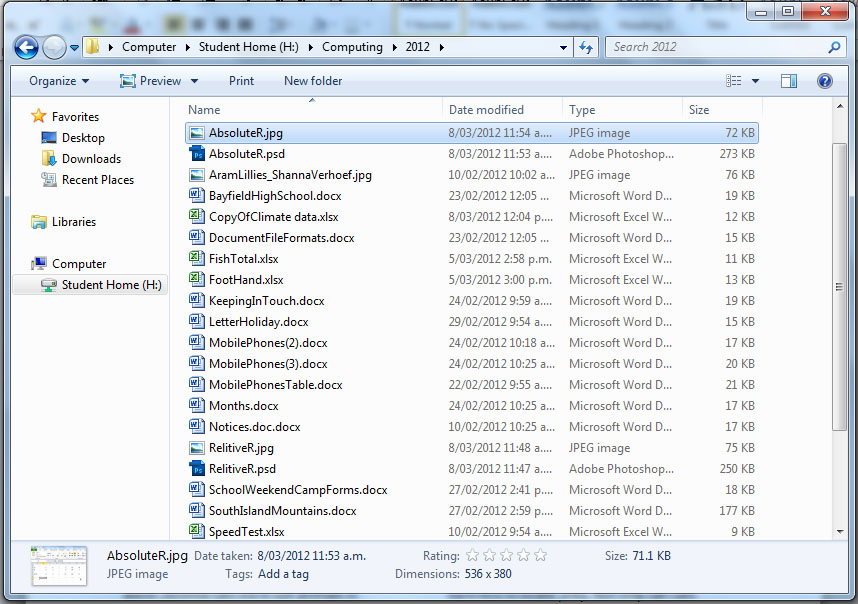
I organise my files by having a file for each school subject, then a file inside each one of those for the year.  I name all my documents with a name which will let me know what the document is.  I use camel case to name my files.  This is when the file names have no spaces in them but capitols at the start of each word.
 

Another way of naming your files is having underscores instead of spaces.
If you use spaces in the file name then if the file is used on the internet, the computer may change the name.  This is why you shouldn't use spaces in the file name.
Another thing you should try not to do is use special characters such as !#$%? except for underscores and dashes.

However you organise your file you should always be consistent.

Thursday, March 8, 2012

Exel - Cell References and Copying to Word

Relative Reference - This means that when you reference a cell in a formula and you use the formula for different cells, the cells in the formula will move across and down depending on where the cell is that you chose to use.


Absolute Reference - This is used in a formula to set a cell so when the formula is used in different cells, the cell you have set will stay the same.  You do this by adding '$' before the letter or number reference for the cell, depending on what you want to stay the same.  eg  =B2+$A$8     A8 will stay in the formula even when you change the cell.   


Copying to Word - If you copy and paste information from excel to word you will have many different paste options.  One of them is 'linking'.  This means that if you change something on the original excel document, the information will also change on the word document.

Wednesday, March 7, 2012

Tools in Word

  • Quick Styles - This is used when you are formatting your text and you have different formats such as font, size and spacing for different parts of your text (e.g. title, subheadings).  It is a lot easier to make the format you would like to use then save it as a quick style so you can reuse it later in the text.  It is easier to use this than to try remember spacing or font sizes each time when making a new heading.
  • Paragraph and Line Spacing - You can use line spacing to spread out your text more so it is easier to read.  Paragraph spacing is used to separate paragraphs instead of using double 'enters'.  You can do this by right clicking the text style at the top of the page and going to 'modify'.  You can then go to 'paragraphs' and edit the size of the gap before or after the paragraph.  If you with to make a new line without getting a paragraph gap, use 'shift, enter' instead of just 'enter'.  
  • Tables - Tables are a useful way to display information.  To make them, you go to 'insert', then to 'table'.  You can then pick how many columns and rows you want.  When using tables you should always adjust the cell margins so the text doesn't look too crammed up.  In the table you can merge cells and right, left and centre align text.
  • Tabs - Tabs can be useful to show information.  To make a tab, simply turn the rulers on then click on the ruler where you would like a tab.  With a tab you can left, right and centre align text as well as aligning decimals.